Crane Inspection Checklists, LLC
Crane Checklist is a digital inspection and compliance mobile app built around official Crane Institute checklist forms created by James J. Headley Jr., a recognized crane and rigging expert and the CEO of both Crane Institute of America, LLC and Crane Inspection Checklists, LLC.
The app brings these expert-developed forms into a field-ready digital workflow, with OSHA/ASME standard references derived from Crane Institute expertise, helping inspectors complete, document, store, and share crane inspection records with confidence. The app is available via the App Store (Apple), Google Play (Android), and the Microsoft Store. Users can purchase one or more licenses for approximately $45 USD per month (some bulk pricing is available) and assign them to other users, regardless of device type. Each assigned user receives an activation code to access their license. All features are included with an active license. There are no setup or cancellation fees.
Video tutorials are available on our
YouTube channel.
Contact Us.
Top Reasons Inspectors Choose Crane Checklist
- Official Crane Institute Inspection Forms — Use professional crane inspection forms backed by the Crane Institute, with OSHA and ASME standards reviewed and kept current as requirements change.
- Customized Branded Inspection Addendum— Add your own PDF addendum to the end of every completed checklist for company branding, disclaimers, policies, inspector information, certifications, terms, and other supporting content.
- Show the Standard Behind Every Finding — Relevant OSHA and ASME references appear directly in the completed PDF, including clickable OSHA links, so customers can immediately see the regulatory basis for repairs, corrective actions, and associated costs.
- Turn Inspection Data Into Business Intelligence — Export checklist data to Excel in a structured format designed for analysis, making it easy to use AI to identify recurring hazards, equipment trends, maintenance patterns, and opportunities across many inspections.
- Inspect Faster With Previously Remembered Answers — Crane Checklist remembers previously entered or spoken answers and equipment details, reducing repetitive typing and speeding up future inspections.
- Work Anywhere — Even Without Cell Service — Complete inspections, capture photos, document hazards, and keep working in remote locations with no Wi-Fi or cellular connection. Upload everything when service is available again.
Licenses for Managers, Owners, and Clients
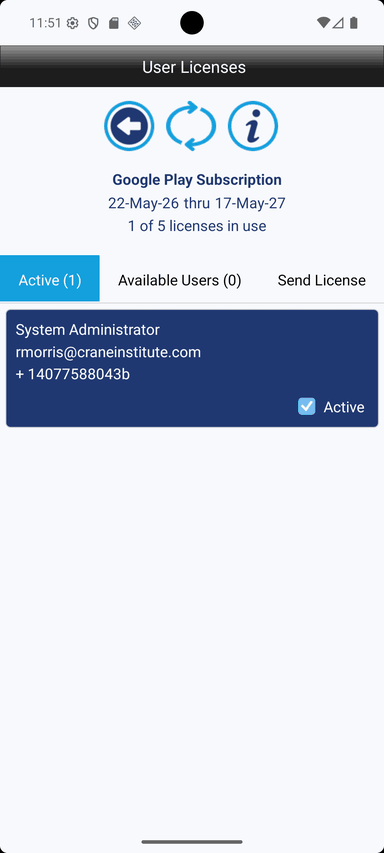
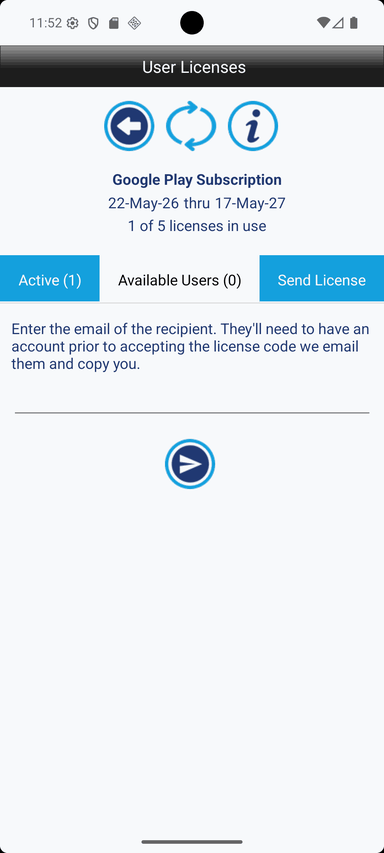
A Crane Checklist license is not limited to inspectors. Inspectors can authorize licensed managers, equipment owners, administrators, safety personnel, or clients to access inspection information without giving them control of the inspector’s original records.
Authorized users can export permitted inspection data to Excel whenever needed, review records from one or multiple inspectors, filter inspection history, identify upcoming inspection dates, and optionally open completed PDF forms and inspection photos through included links.
This gives office and management personnel direct access to current inspection records without requiring the inspector to manually prepare and send a separate report each time.
Basic Workflow
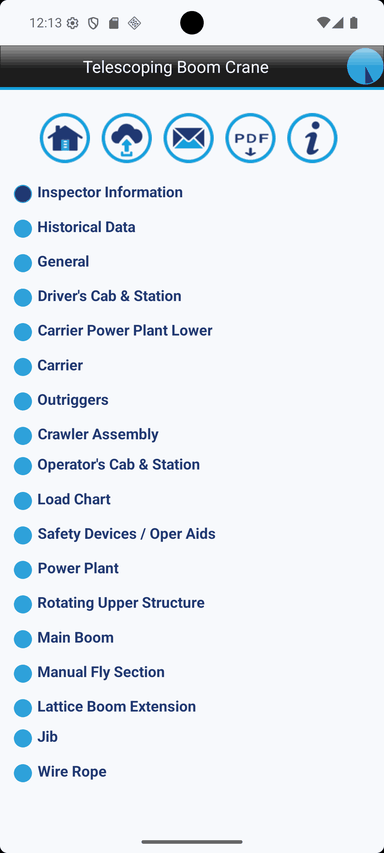
Create a new checklist or open an existing checklist. Complete each checklist section and take photos where needed.
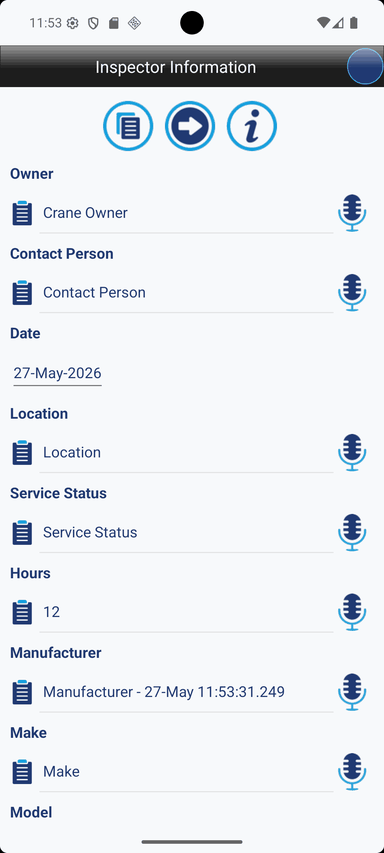
If 3rd party clients, administrators, or management also have a user license, you can enable them to export to Excel on demand and optionally include links to the PDF forms and photos. Just enter one or more email addresses in the Inspector Information section, separated by semicolons (;), to allow those users to export.
Mark checklist items as Satisfactory, Safety Hazard, Monitor, Recommendation, or Not Applicable. Review Hazard Lines near the end of the form and update hazard text or photo descriptions as needed.
Upload the checklist when internet is available. Export to Excel, share data, or download the completed PDF after uploading the latest changes.
Offline Use And Saving
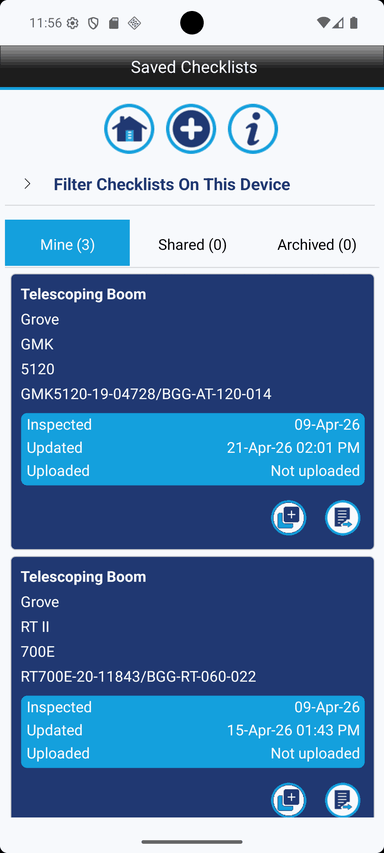
You can complete checklists and capture photos without internet access. Checklist answers and photos are saved on your device as you work.
You can leave a checklist and return later to continue editing. Uploading, downloading checklists, sharing, license refresh, Excel export, and PDF generation require internet access.
Upload the checklist to securely store the latest data and current photo versions on the server. Do not uninstall the app unless important checklists have been uploaded or exported.
PDF Download
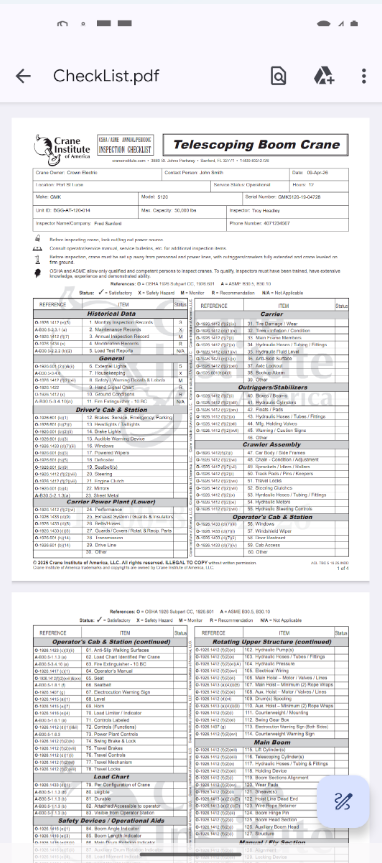
Tap the PDF icon to download the official Crane Institute checklist populated with captured data and photos. The PDF is generated from the uploaded checklist data.
Upload all checklist changes before downloading the PDF so the latest answers and photos are included. Photos added, replaced, deleted, or annotated after the last upload will not be reflected in the PDF until the checklist is uploaded again.
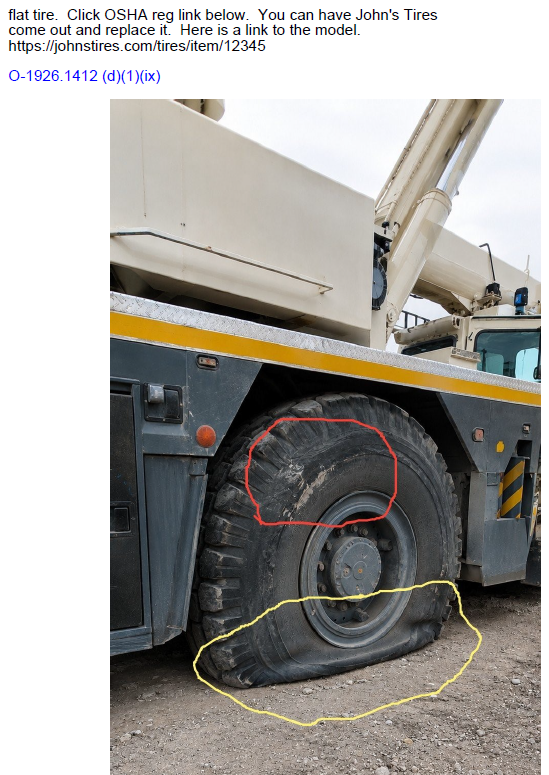
When applicable, hazard photos can include a clickable link to the related OSHA, ASME, or other standard above the photo so the recipient can review the requirement directly.
Icons
Crane Checklist uses toolbar icons and action icons to keep common inspection tasks easy to reach. The icons below identify the major actions used throughout the app.

Return to Main Menu

Upload Checklist

Download Checklists

Share Data

Generate PDF

Help

View OSHA Regulation

View ASME Standard

Previous Screen

Next Screen

Checklist Main Menu

Hazard Lines

Add

Add Photo

Camera

Microphone

Refresh

Copy

Delete

Clear

Close Dialog

Color Picker

Recent Entries

Buy Subscription

Licensed Users

Archive Checklist

Unarchive Checklist

Submit On Android

Submit On iOS
Create Account
Create a free account with your mobile number, email address, and name. You can complete and upload checklists and forms right away with your trial license.
All features are included with an active license assigned to your account.
Login
Enter your mobile number or email address. Crane Checklist sends a one-time code to enter on the validation screen.
No password is required. Once verified, you stay signed in on this device until you sign out.
Edit Checklist
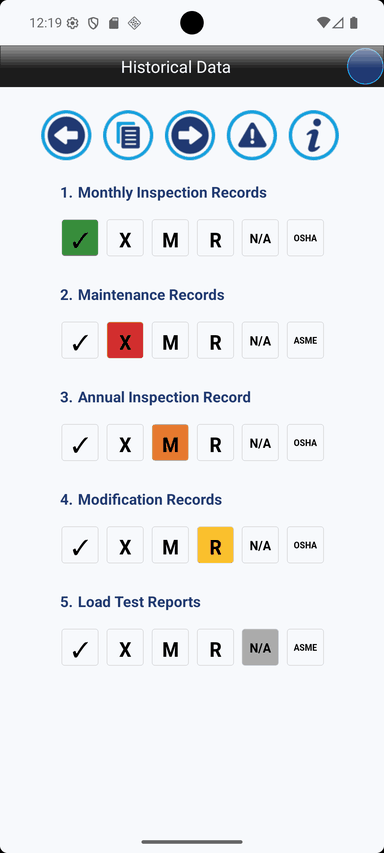
Complete each area of the checklist by selecting a status and entering notes or other details where needed. The available status values are Satisfactory, Safety Hazard, Monitor, Recommendation, and Not Applicable.
Use Satisfactory when the inspected item is acceptable. Use Safety Hazard for items that represent an unsafe condition or immediate concern.
Use Monitor for items that should be watched or rechecked but may not require immediate correction. Use Recommendation for suggested corrective action or improvement.
Use Not Applicable when the checklist item does not apply to the equipment or inspection situation. You can change the selected status before completing the checklist.
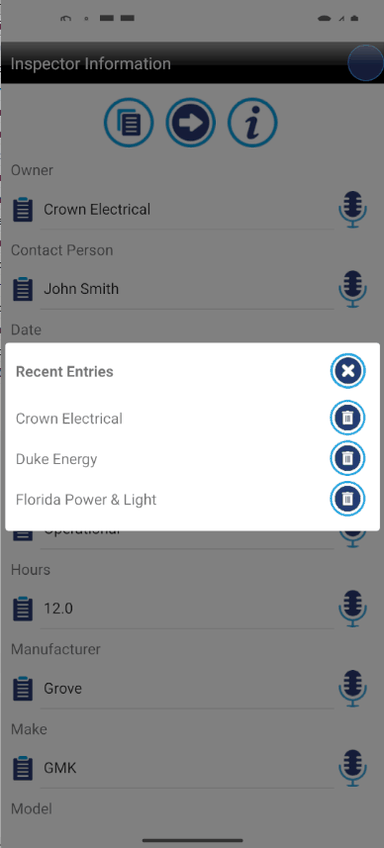
The dropdown arrow reveals previously typed or spoken entries. Tap one to select it.
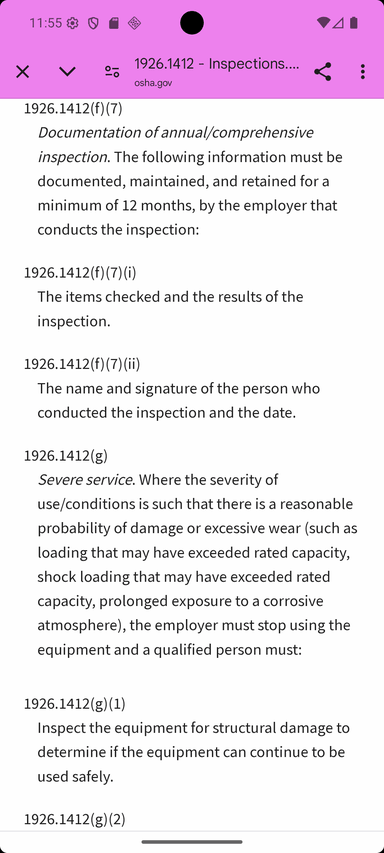
Tap the Help button beside a checklist item to view regulatory information related to that item. See Speech To Text for microphone instructions.
Archive And Delete Checklists
To delete an individual checklist from your device, first select the checklist and tap Archive Checklist. Open the Archived tab, select the archived checklist, and then tap Delete.
Deleting an archived checklist removes the checklist data and associated photos from that device only. It does not delete any checklist data or photos previously uploaded to the Crane Checklist server.
A checklist that remains stored on the server may be downloaded to the device again later. To preserve important checklist records and photos, upload the latest version before deleting the local copy.
Licenses
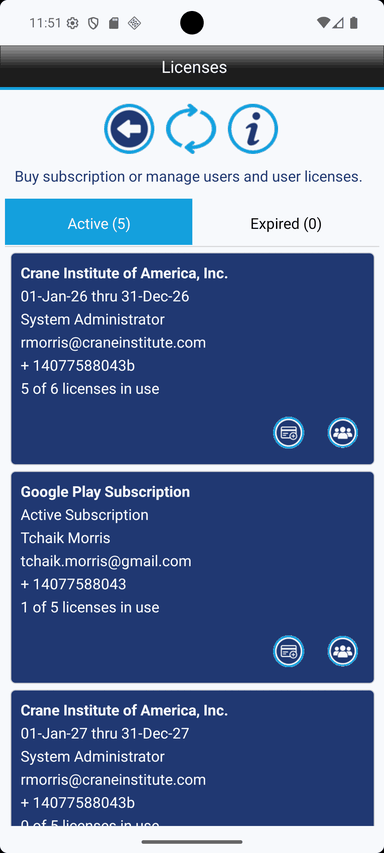
All features are included with an active or trial license. After the trial, users can complete and upload checklists, but downloads, exports, and sharing require an active license.
After purchasing or changing a subscription, refresh the licensing screen to update available licenses. If a licensed feature is unavailable, confirm that a valid license is assigned to your account.
An expired license is no longer valid. Crane Checklist licenses become active immediately after a subscription purchase is completed through the app store.
If a subscription is canceled, interrupted, or temporarily inactive, existing licenses are not immediately disabled so teams have time to make subscription changes without losing access right away. To upgrade or downgrade the number of users on a subscription, cancel the current subscription through the app store, return to the app, refresh the licensing screen, enter the new user count, and submit the purchase again.
Using Your License On Multiple Devices
Your Crane Checklist license is not tied to one device type or one app store. After your license is active, you can use Crane Checklist on supported device types without purchasing the app again from another app store.
For example, if you purchased your license through one app store, you can still sign in and use that same active license on other supported devices, as long as the license remains valid for your account. Crane Checklist validates your license through our own licensing system, independently from any app store.
App stores are used only for the original purchase and for managing changes to that purchase. If you need to change, cancel, renew, or otherwise manage your subscription, you must use the same app store account and app store where the purchase was originally made.
In short, your active Crane Checklist license can be used across supported devices, but subscription changes must be handled through the app store that processed the original purchase.
Speech To Text
Tap the microphone icon, wait about one second, and then speak. In single-line text boxes, recording stops when you stop speaking.
In multi-line text areas, tap the microphone again to stop recording. Speech-to-text is useful for entering inspection notes quickly in the field.
Hazards And Photos
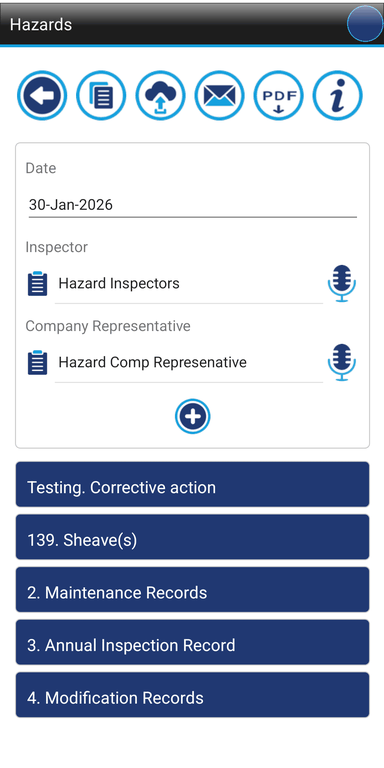
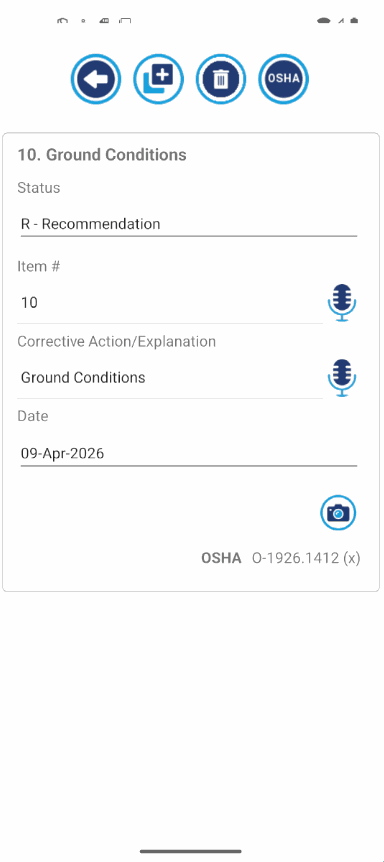
Tap a hazard level to auto-create a hazard line. Any photos taken on that screen are attached automatically.
In the Hazard Lines section at the end of the form, you can edit the hazard text and update photo descriptions. You can delete, replace, or annotate checklist photos as needed.
When the PDF is generated, each hazard photo can include the related OSHA, ASME, or other applicable standard above the photo. The standard is shown as a clickable link so the PDF recipient can review the requirement directly.
This helps customers and finance teams understand why a repair is needed, which can make repair approvals easier. This also gives third-party inspectors a professional way to document repair needs and help clients justify repair costs.
Upload the checklist after making hazard or photo changes so the latest versions are included in Excel exports, shared data, and the PDF.
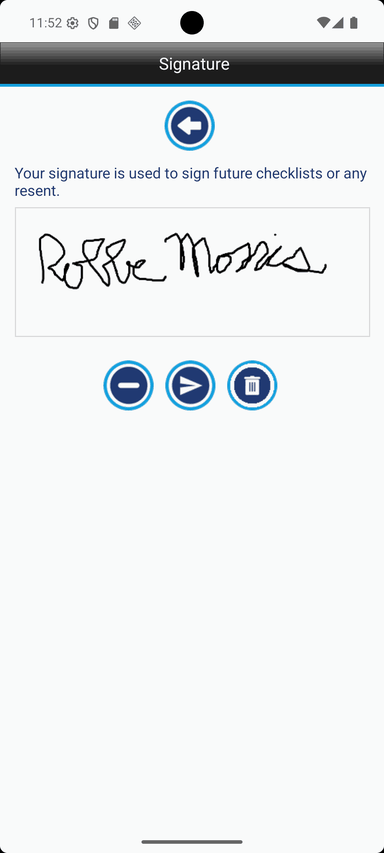
Signature
Capture and save a digital signature when required by the applicable inspection procedure, employer policy, checklist form, or regulatory requirement. The app applies the saved signature to the completed checklist form.
Upload Checklist
Tap the cloud with the up arrow to upload all data and photos for the selected checklist. Upload requires an internet connection.
When you upload a checklist, the current version of each associated photo is uploaded with the checklist data. If the upload fails, your local checklist remains on the device, so check your connection and try again.
Excel exports, shared data, and completed PDFs are created from uploaded checklist data. If you edit the checklist or update photos after uploading, upload again before exporting to Excel, sharing data, or downloading the PDF.
Sharing Data
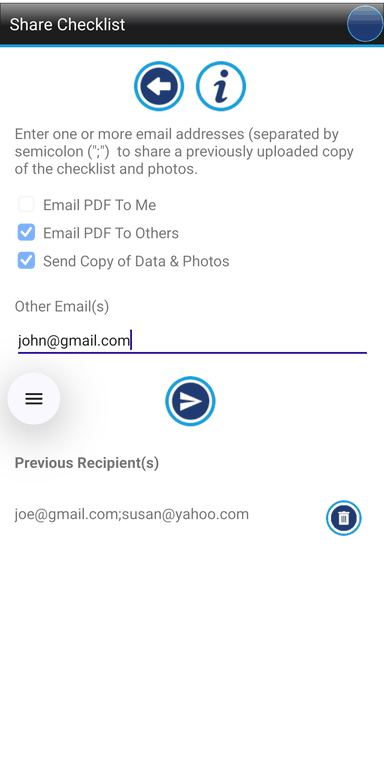
Enter one or more email addresses to share an uploaded checklist. Use a semicolon to separate multiple email addresses.
Upload all checklist changes before sharing so the latest answers and photos are included. The original checklist always belongs to the original user.
To preserve the integrity of the original inspection record, sharing a checklist as a copy does not allow the recipient to change the original user’s checklist data. The recipient receives a separate editable copy of the checklist data and photos, including a link back to the original source checklist.
This is especially useful when an inspector shares a checklist with a mechanic or repair department. The recipient can document repairs, add updated photographs, enter corrective information, and change item statuses in a separate copy without altering the inspector’s original inspection record. The copied record remains linked to its original source, helping preserve the history from the initial finding through corrective action.
View-only users can see the shared checklist data, forms, Excel information, and PDFs, but they do not receive their own editable copy of the checklist data.
Download Checklists
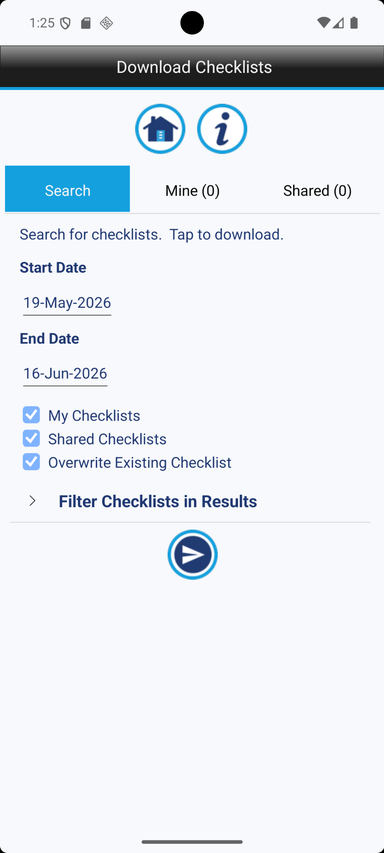
Select My Checklists and Shared Checklists, choose a Days filter, filter by options, and optionally enable Overwrite Existing Checklist. My Checklists shows checklists uploaded by your account.
Filter by options include checklist type, Owner, Manufacturer, Make, Model, and Serial Number / UnitID. Use * to match partial text. Ex: *crane*
Shared Checklists shows checklists other users have shared with you. Tap Search to load results, then tap the checklists you want to download.
If Overwrite Existing Checklist is off, any checklist already on your device is skipped. Use Overwrite Existing Checklist carefully because it replaces the local copy with the server copy.
Export To Excel And AI
Upload all checklist changes before exporting so the latest uploaded data is included. Export checklist history to a filterable Excel file for review, reporting, AI analysis, audits, insurance, or legal documentation.
Select the checklist type, filter by options, and desired date range. When Include All Users is unchecked, only checklist data created by your account is exported.
Filter by options include checklist type, Owner, Manufacturer, Make, Model, and Serial Number / UnitID. Use * to match partial text. Ex: *crane*
When Include All Users is checked, the export also includes checklist data from users whose data you have permission to view. This helps supervisors review data and forms from multiple inspectors without needing editable copies of each checklist.
Exclude duplicate shared checklists hides checklist copies that have identical data to an original checklist, as long as that original is included in the database results. The Excel export includes the checklist definition ID and the original checklist definition ID so users and AI tools can understand when a checklist is a copy linked back to an original source checklist.
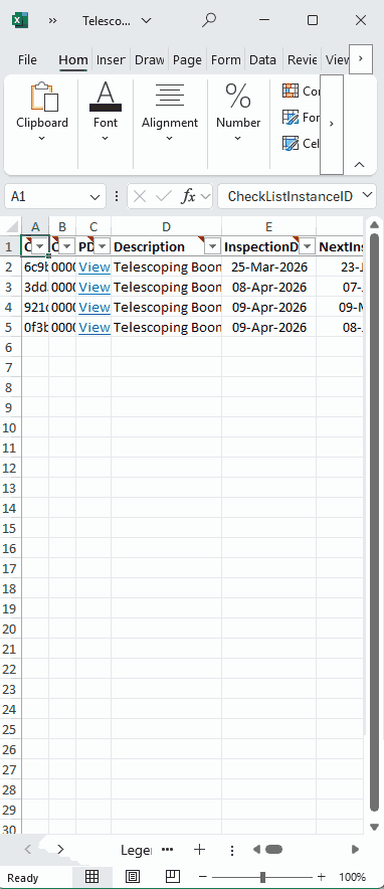
Exported columns include comments explaining what each column means, and the workbook includes a detailed legend to help users and AI tools understand the checklist data. Column filters are automatically configured.
The export includes the user-defined next inspection date so you can filter or search for equipment with upcoming inspections. The app defaults this date to just under one year, but you can change it as needed.
Photos are not embedded directly in Excel. Photos are embedded in the completed PDF.
Optional public form links with user-defined expiration dates can be included so recipients or AI tools can open the completed checklist PDF while the link is active. Public form links can be opened by anyone with internet access while the link is active.
After the export is created, the expiration date for those links cannot be changed. If public form links are included, AI tools that support opening public PDF URLs may use the completed checklist PDF for additional context while the link is active.
Download All PDFs with AI
Each exported workbook includes built-in instructions that explain how a compatible AI tool can locate, download, validate, and organize all active PDF links contained in the export. After uploading the Excel workbook to an AI tool, the user can simply ask "Download all PDFs".
No additional instructions are required. When supported by the AI tool, it will review all applicable inspection rows, download each available completed PDF, and provide the successfully downloaded forms together in a ZIP archive. PDF links must still be active, and the AI tool must support Excel hyperlinks, internet access, file downloads, and ZIP-file creation.
How AI Can Help Review Inspection Records
The Excel export is designed to give compatible AI tools structured information about completed crane inspections. Depending on the AI tool and the user’s instructions, it may be able to review inspection records, identify Safety Hazard, Monitor, Recommendation, or Corrected entries, match hazard entries to the checklist items that generated them, compare inspections for the same equipment, locate upcoming inspection dates, summarize inspection history, and identify recurring or unusual findings.
AI tools may also help users:
- Find every inspection containing a specified condition or checklist result.
- Compare results across inspectors, equipment owners, locations, cranes, or date ranges.
- Identify repeated findings involving the same checklist item.
- Create tables, summaries, timelines, and management reports.
- Review OSHA citations and open official OSHA links included in the Data Dictionary when the AI tool supports internet access.
- Open active public PDF links to review the completed form, signatures, notes, corrective actions, and inspection photos.
- Trace a hazard entry back to the exact checklist column and inspection item that generated it.
- Distinguish original inspections from records copied or derived from another inspection.
- Flag records that may need additional review and return an updated workbook or separate analysis sheet when the AI tool supports Excel editing.
Use by Managers, Auditors, Insurers, and Legal Teams
The export can be useful to people other than the equipment operator or inspector. Authorized managers, equipment owners, safety personnel, auditors, insurance representatives, attorneys, claims personnel, and other reviewers can use the structured inspection history to better understand what was inspected, what conditions were documented, when findings occurred, whether corrective information was recorded, and how related inspections connect to one another.
During an audit, insurance claim, incident investigation, dispute, or legal matter, an AI-assisted review may help organize large numbers of inspection records, locate relevant entries, build a chronology, identify records involving particular equipment or conditions, and prepare questions for further investigation. It may also help reviewers locate the completed PDF forms and supporting photographs associated with specific findings while public links remain active.
AI analysis should be treated as an aid to record review, not as a substitute for a qualified inspector, safety professional, attorney, insurer, or regulatory authority. AI-generated findings may be incomplete or incorrect and should be independently verified before they are used for safety, compliance, insurance, audit, or legal decisions.
Common Questions
Why do I need to upload before exporting, sharing, or downloading the PDF? Excel exports, shared data, and completed PDFs are created from uploaded checklist data, so upload all changes first to include the latest answers and photos.
Are my photos uploaded with the checklist? Yes, when you upload a checklist, the current version of each associated photo is uploaded with the checklist data.
Can I update checklist photos? Yes, you can delete, replace, or annotate photos as needed, then upload the checklist again so the latest versions are included in Excel exports, shared data, and the PDF.
Can someone I share a checklist with edit my original checklist? No, when you share a checklist as a copy, the recipient receives their own editable copy with a link back to the original source checklist, and the original checklist remains unchanged and belongs to the original user.
What does view-only access allow? View-only users can see the shared checklist data, forms, Excel information, and PDFs, but they do not receive their own editable copy of the checklist data.
Do public form links require a Crane Checklist account? No, anyone with internet access can open a public form link while the link is active.
Can I change a public form link expiration date after export? No, the expiration date is set when the Excel export is created and cannot be changed later.
Does the Excel export include photos? No, photos are not embedded directly in the Excel workbook, but photos are embedded in the completed PDF that can be opened from public form links while the links are active.
Can I find equipment with upcoming inspections? Yes, the export includes the user-defined next inspection date so you can filter or search for equipment with upcoming inspection dates.
Does deleting a checklist remove it from the server? No. Deleting an archived checklist removes its data and photos from the current device only. Any version previously uploaded to the server remains available and may be downloaded again later.
Official Crane Institute Forms In The App
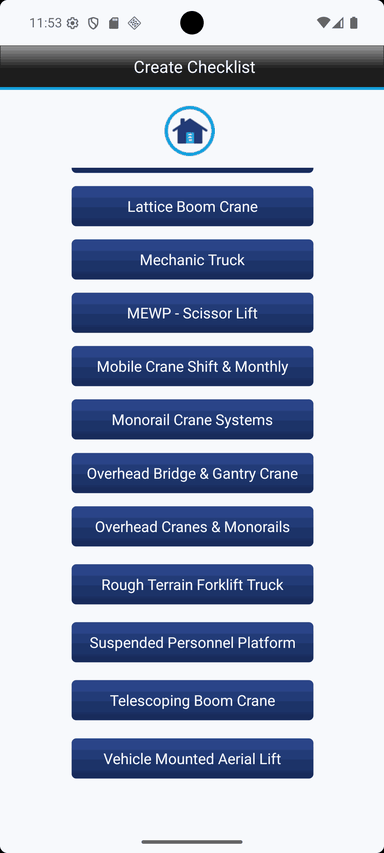
| 1. | Articulating Boom Crane |
| 2. | Boom Truck Crane |
| 3. | Industrial Lift Truck |
| 4. | Jib Cranes & Hoists |
| 5. | Lattice Boom Crane |
| 6. | Manual Chain Hoist |
| 7. | Mechanic Truck |
| 8. | MEWP - Scissor Lift |
| 9. | Mobile Crane Shift & Monthly |
| 10. | Monorail Crane Systems |
| 11. | Overhead Bridge & Gantry Crane |
| 12. | Overhead Cranes & Monorails |
| 13. | Rough Terrain Forklift Truck |
| 14. | Side Boom Crane |
| 15. | Suspended Personnel Platform |
| 16. | Telescoping Boom Crane |
| 17. | Tower Crane |
| 18. | Vehicle Mounted Aerial Lift |
Team
James J. Headley Jr. is the Chief Executive Officer and co-owner of Crane Inspection Checklists, LLC.
Robbe D. Morris is the Chief Technology Officer and co-owner of Crane Inspection Checklists, LLC.
Privacy Policy
Crane Checklist Terms of Service & License Agreement